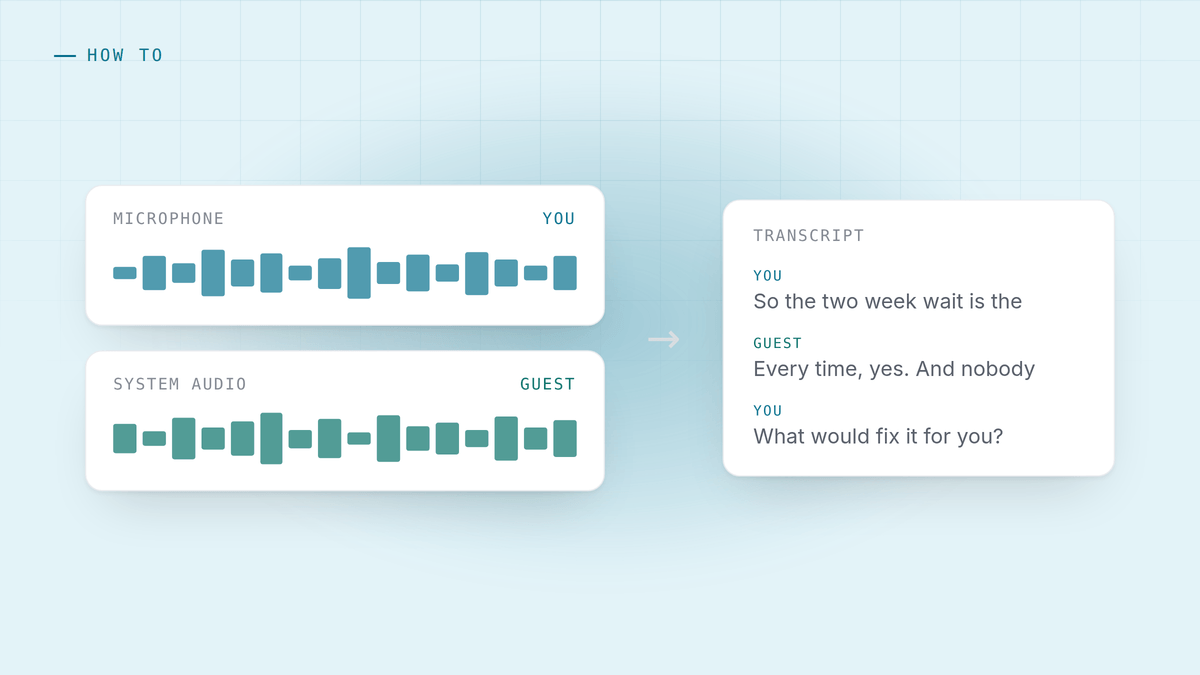
Almost every AI notetaker joins your call as a participant. Everyone sees it arrive, somebody asks what it is, and on a first call with a client or a candidate that is a worse two minutes than the one you had planned.
You do not have to do it that way. Here are the four approaches that work, in the order I would try them, with the real trade-off for each.
1. Capture from your own machine
Works on: every platform, plus a phone on speaker and a conversation in a room. Cost: one permission on macOS.
Your computer already has both halves of the call. Your microphone is your side. What your speakers are playing is the other side. An app that takes both and keeps them as separate tracks has the whole conversation, and nothing ever joins anything.
This is the approach HuddleOwl uses, and it is the only one on this list where the other participants genuinely cannot tell. There is no bot, no notification, no extra name in the list, and no dependency on which meeting platform you happen to be on.
The catch is the permission, which is below.
2. The platform’s own recording
Works on: Zoom, Meet and Teams, if you host. Cost: everyone is told, and you get a file rather than notes.
Every major platform records natively, and it is the most honest option: participants see the notice, which is the correct outcome in most jurisdictions anyway. What you get back is a video file and, depending on your plan, a transcript.
Use it when the record is the point. It gives you nothing during the call and nothing structured afterwards, so most people then feed the file into something else, which brings you back to choosing a tool.
3. A system-wide screen recorder
Works on: anything. Cost: an enormous file and no structure at all.
QuickTime on macOS or Game Bar on Windows will capture the screen and the audio. Nothing joins the call, and you own the file.
You will not do this twice. A one-hour call is a large video you have to store, scrub through and never watch, and if you want the words you are transcribing it separately anyway.
4. A dictation app on your phone
Works on: anything, badly. Cost: one merged track, no speaker labels.
Put a recorder next to your laptop. It works, and it produces a single mono track where you and the other person are indistinguishable, which means any transcript you get from it labels everything as one speaker.
Worth knowing about as a fallback. Not worth choosing.
The macOS permission that trips everybody up
If you take the first approach, this is the part where people conclude the software is broken, so it is worth understanding once.
Microphone access is a normal permission. System audio is not.
On macOS 14.4 and later there is a native process tap: no picker, no prompt, nothing to approve. Below that, system audio arrives through the screen capture API, so the app has to ask for Screen and System Audio Recording. Apple puts both behind one switch, which is why an app that only wants to hear your speakers asks for something that sounds like it wants to watch your screen.
Then there is the failure that wastes an afternoon:
The permission is granted and macOS is not applying it.
The checkbox in System Settings is ticked, capture still fails, and every instinct tells you to go and tick the checkbox again. It will not help. The grant is bound to a running process, and the app has been running since before you granted it.
The fix is to quit the app completely, Cmd Q rather than closing the window, and open it again. A good app detects this state and says exactly that instead of telling you to grant a permission you have already granted.
On Windows none of this applies. Loopback audio needs no permission and no picker.
Two things worth getting right whichever you pick
Wear headphones. On speakers your microphone re-captures the other person’s voice coming out of them, so the same sentence arrives twice: once correctly on the system track and once on yours, where it looks like you said it. Good software cancels this and suppresses the duplicate. Headphones make the problem not exist.
Know who is speaking, and know how you know. If the two sides are captured as separate tracks, attribution is a fact rather than a guess: the microphone is you, the loopback is the other side. Anything that tries to name a voice is guessing, and it will be wrong on the call where it matters.
And the part nobody mentions until later
Where does the audio go?
With a bot, it goes to that vendor’s servers, which means a processor to name in your privacy notice, a retention period to explain and a security questionnaire when somebody in procurement notices. That conversation is usually longer than the evaluation of the tool itself.
Capturing locally, it can stay on your machine. HuddleOwl with the on-device models makes no network calls during a meeting at all, which you can verify in about a minute by turning the wifi off and running a call. Live transcription, live cues, the brief and the follow-up email all still work.
That is not the reason to skip the bot. The reason to skip the bot is that the conversation is different when nothing joins it. But it is a good second reason.
HuddleOwl captures both sides of a call from your own machine, coaches you while you are still on it, and scores how you ran it afterwards. Free, no account, and nothing joins the meeting. There is more on how the capture works in why nothing joins your meeting.


