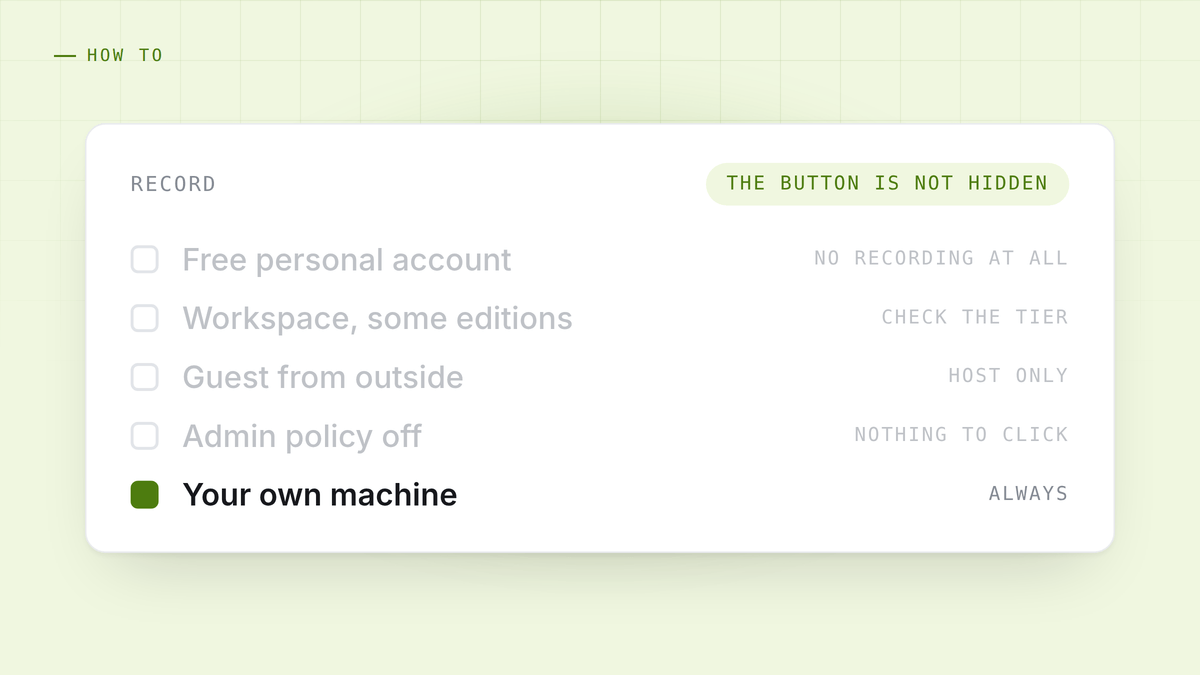
If you are looking for the record button in Google Meet and cannot find it, it is very likely not hidden. It is not there.
Why it is missing
Recording in Google Meet is a paid Workspace feature. On a free personal Google account there is no recording, at any point in the menu, and no setting that turns it on.
Even inside a paying organisation there are three more ways for it to be absent:
Your edition does not include it. Workspace has several tiers and recording is not in all of them. Google moves what sits in which edition, so the plan page linked at the bottom is the only reliable answer.
Your administrator turned it off. It is an admin console setting. It can be off for the whole organisation or for your particular group.
You are not the host or a co-host. Meet restricts recording to the host, co-hosts, and in a Workspace context people in the same organisation as the host. A guest from another company generally cannot record, whatever their own plan is.
That covers essentially every case of “the button is greyed out”. None of them are fixed from inside the meeting except the last, and that one is fixed by the host making you a co-host.
What you get when it does work
A video file in the organiser’s Google Drive, plus a transcript on the editions that include one. Everyone in the meeting is told it is being recorded, which is the correct behaviour and worth keeping in mind before you go looking for a way around it.
It is a record of the meeting. It is not notes, and it does nothing at all while the meeting is happening. The file goes into a Drive folder that, in most organisations, accumulates recordings nobody opens again.
The two questions worth separating
People arrive at this looking for one of two different things, and mixing them up is why the answers online are unsatisfying.
“I need a record of what was said.” Meet’s own recording does this, on a paid edition. So does anything else that captures the audio.
“I need to know what was said without watching an hour of video.” Meet’s recording does not do this. A transcript gets you closer. Notes you can act on need something that reads the transcript.
If it is the second one, the plan tier is a side issue and you should skip past it.
Capturing it without a Workspace plan
The approach that works on every platform is to record on your own machine rather than through the platform. Your microphone is one track. What your speakers are playing is the other track. Both together are the whole conversation.
This does not care whether you are the host, whether you are in the organiser’s organisation, or which edition anybody is paying for, because it never asks Google anything. It works identically on Meet, Zoom, Teams and a call on speakerphone.
Two practical notes:
On Windows, capturing what the speakers are playing needs no permission. It is a normal audio device.
On macOS, it needs one system permission, and there is a trap: granting it while the app is running does not take effect until the app is fully quit and reopened. Cmd Q, not closing the window. That one catches nearly everybody, and it is covered along with the rest in recording a meeting without a bot.
Tell people either way. Capturing on your own machine means Meet will not announce it, so announcing it is your job. One sentence at the top of the call. The reasons that matters more than it looks are in is it legal to record a meeting.
What about the bots
The other common answer is an AI notetaker that joins the call as a participant. It works on a free account, because it is a guest rather than a feature.
It also appears in the participant list, in front of the client or the candidate you are talking to. On an internal standup that is nothing. On a first call with somebody you are trying to build trust with, it is a worse two minutes than the ones you planned. The architecture behind the alternative, and what it cost to build, is written up here.
The short version
- Free Google account: there is no recording in Meet. Nothing to enable.
- Paid Workspace, button greyed out: either your edition, your admin policy, or the fact that you are a guest rather than the host.
- Any account, any platform: capture the audio on your own machine and the question disappears.
- You wanted notes rather than a video file: none of Meet’s options are that.
HuddleOwl captures both sides of a Meet call from your own machine, with no plan, no host permission and nothing in the participant list. It coaches you during the call and scores it afterwards. Free.
References
- Google: record a video meeting.
- Google Workspace editions and pricing, for what currently includes recording.


