Teams recording is more capable than Zoom’s or Meet’s and more tangled, because it is wired into the rest of Microsoft 365. That is why the answer to “where did my recording go” is longer than it should be.
Recording, and where the file lands
Recording is under the meeting’s More menu, and it needs a licence that includes it. Teams is bundled into several Microsoft 365 plans and the composition changes, so the plan page at the bottom is the answer rather than any number written here.
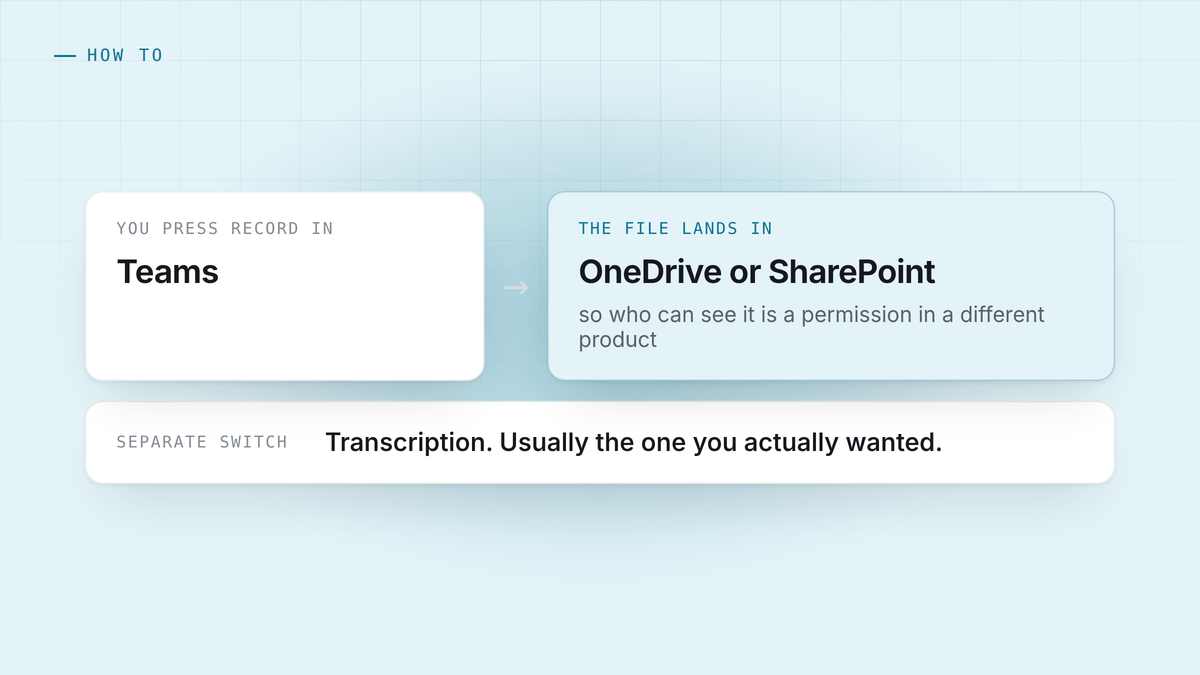
The part that surprises people is where the file goes. It is not stored in Teams. It goes to OneDrive or SharePoint:
- A regular meeting puts the recording in the OneDrive of the person who started it, in a Recordings folder.
- A channel meeting puts it in that channel’s SharePoint site, where the whole team can reach it.
So “who can see my recording” is answered by file permissions in a different product, which is exactly why so many recordings end up shared with people nobody intended, or locked away from people who needed them.
Transcription is separate
Teams will produce a live transcript, and it is a different switch from recording. You can have one without the other. On the editions that support it the transcript is genuinely useful: it is timestamped, it names speakers, and it can be downloaded.
If what you actually want is the words rather than the video, turn on transcription and skip recording entirely. It produces a far smaller artefact that somebody might actually read.
Why the button is not there
The same four causes as everywhere else:
No licence for it. Recording is not in every Microsoft 365 plan.
A policy turned it off. Teams recording is governed by admin policies, which can be set per user. Two people in the same meeting can genuinely have different options.
You are an external guest. Guests from outside the tenant usually cannot start a recording, whatever their own organisation pays for.
It is a channel meeting with storage misconfigured. Rarer, and it produces a recording that starts and then fails, which is worse than a missing button.
None of these are fixable from inside the meeting. The first three are a conversation with whoever runs your tenant.
Getting the words without any of that
If the licence, the policy or the guest problem is in your way, or if you want notes rather than a file in somebody’s OneDrive, the approach that works everywhere is to capture the audio on the machine you are sitting at.
Your microphone is one track. What your speakers are playing is the other. Together they are the whole call, and because they are separate tracks, who said what is a fact about which track the audio arrived on rather than a model’s guess.
Nothing joins the meeting, so there is nothing for a tenant policy to permit or forbid. It works the same on Teams, Zoom, Meet and a call on speakerphone. On Windows it needs no permission at all, which is worth knowing given how much of the Teams world runs on Windows. The macOS side and its one permission trap are in recording a meeting without a bot.
Say that you are recording. Teams announces its own recording to the room. Capturing locally does not announce anything, so that job moves to you, and it takes one sentence. Why that is the right habit, everywhere.
Turning a recording you already have into something readable
If you have a pile of Teams recordings in OneDrive and no time to watch them, they can be transcribed on your own machine without uploading anything anywhere. An hour of audio takes a few minutes on a laptop with a mid-sized local model. HuddleOwl imports an audio file and runs the same scored brief over it as it would over a live call, so an old recording comes back as a summary, the action items, and how the call was actually run rather than as another hour of video.
The model sizes, the speeds and what each costs in memory are in how to transcribe a meeting on your own machine.
The short version
- Recording lives in OneDrive or SharePoint, not in Teams. That is where permissions are decided.
- Transcription is a separate switch, and it is usually the one you actually wanted.
- A missing button is a licence or a policy, and neither is fixable in the meeting.
- Capturing on your own machine sidesteps all of it and works on every platform.
HuddleOwl captures a Teams call from your own machine, with no licence, no policy and nothing in the participant list. Live cues during the call, a scored brief afterwards, and the audio never leaves the laptop. Free.


